 HKC Plugins
HKC Performance
Core Web Vitals and PageSpeed Insights monitoring, inside the WordPress admin — without slowing your site down, and with the Search Console figures that tell you whether the work pays off.
What it does
- Stable scores. A mobile PageSpeed score varies by 5 to 15 points between two tests. The extension runs several tests in parallel, keeps the median, and warms up your page cache first.
- Real visitors first. Shows the Chrome UX Report data Google uses for ranking (LCP, INP, CLS), next to the lab test used for diagnosis.
- Explains variations. Marks Lighthouse version changes, plugin updates, cache settings changes and your own notes on the charts.
- Plain-language advice. Every issue is explained in clear words, with pointers for LiteSpeed Cache and ShortPixel when they are installed.
- Alerts without noise. Configurable thresholds on mobile, compared with the previous week rather than a single test; at most one email per 24 hours.
- Does it pay off? Weekly Google Search clicks and positions of your reference pages, and a before/after comparison around any change, with your whole site as a control group.
- Nothing on the public site. Tests run on Google's servers; the extension only works in the admin and in scheduled tasks.
A look inside
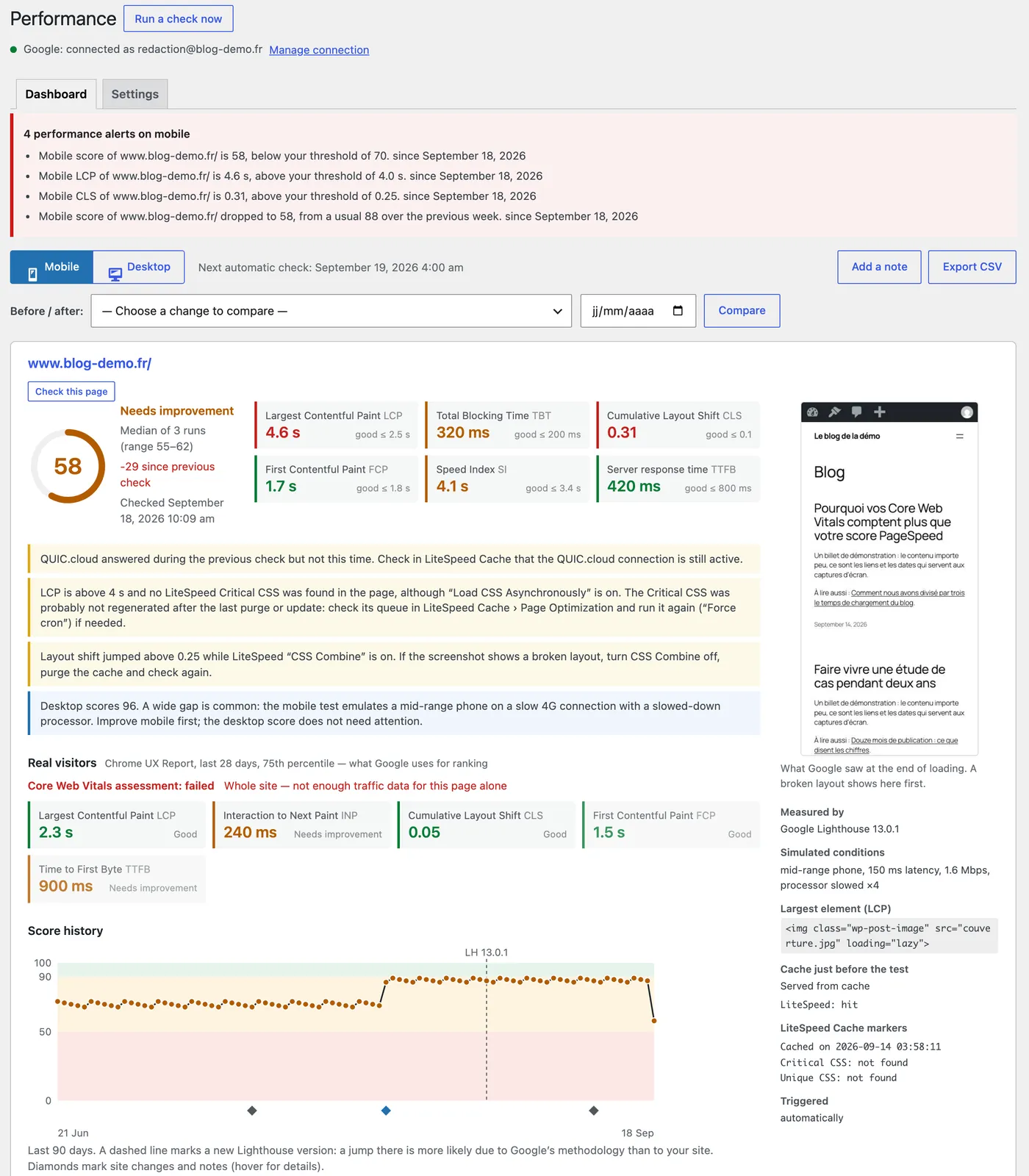
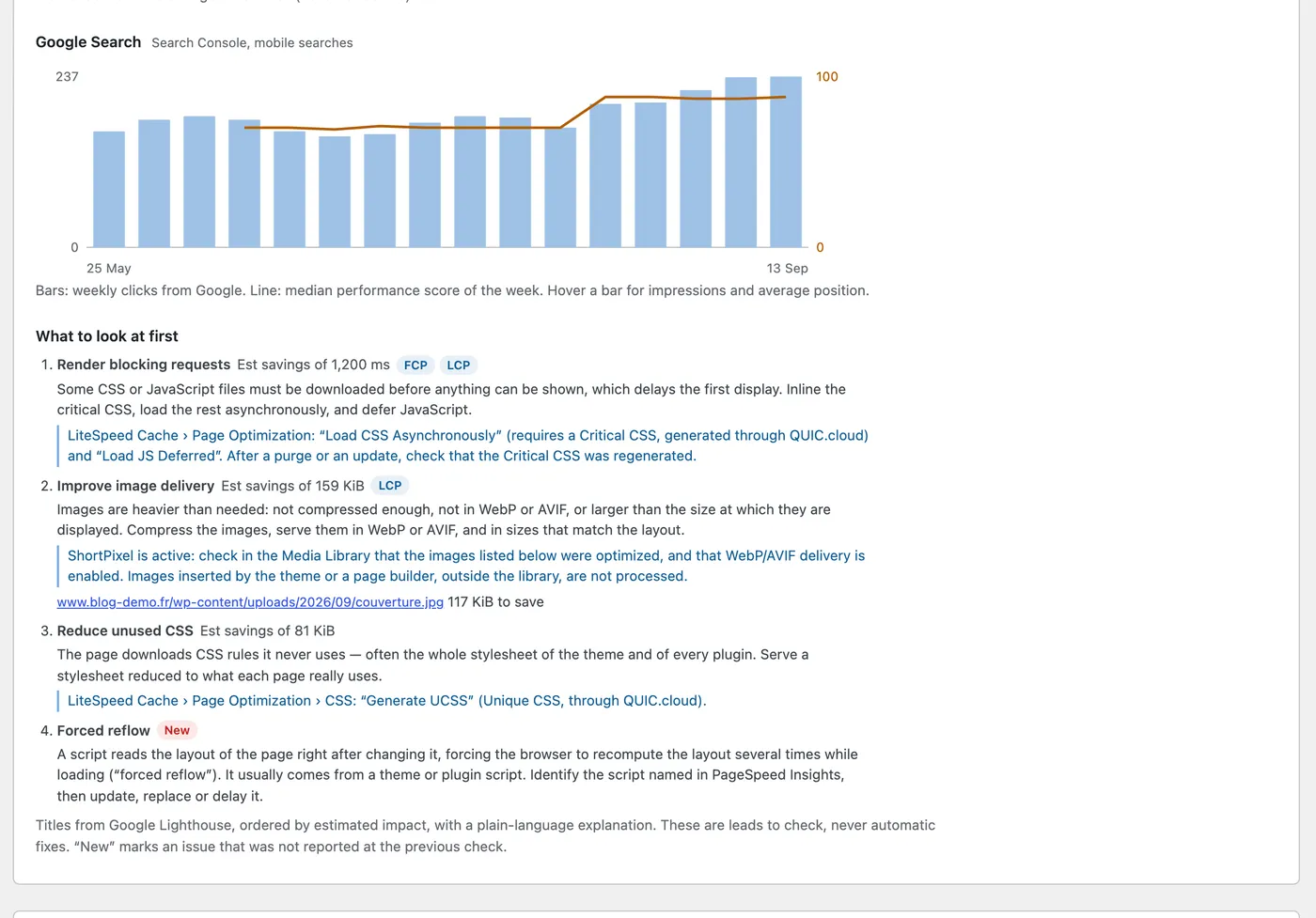
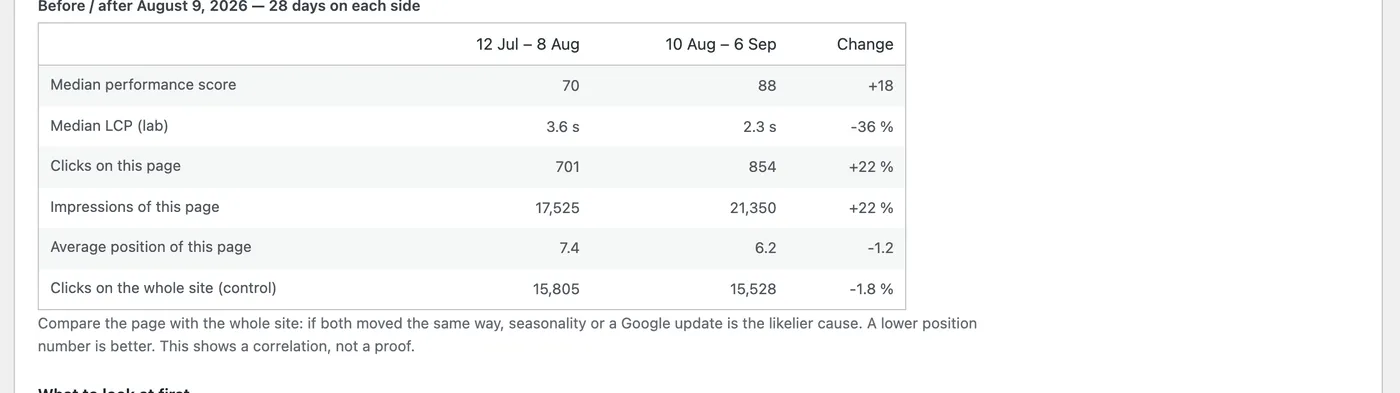
Screenshots taken on a demo site, with figures produced for the demonstration.
Requirements
- WordPress 6.2 or later, PHP 7.4 or later (with OpenSSL).
- A Google account. To see Search Console figures, the account must have access to the site's Search Console property.
Installation
- In WordPress, go to Plugins › Add New › Upload Plugin and upload
hkc-performance.zip. - Activate the extension and open the Performance menu.
- Click Connect Google, then Sign in with Google.
Updates then appear in the WordPress plugins screen like any other extension.
How Google sign-in works
HKC Performance calls three Google services on behalf of the site owner:
| Google service | What for | Access |
|---|---|---|
| PageSpeed Insights | Lab test and 28-day real-visitor data of your reference pages | Sign-in (openid) |
| Search Console | Clicks, impressions and average position of your reference pages and of your whole site, to compare them with performance over time; suggestion of reference pages | Read-only (webmasters.readonly) |
| Google Analytics | Pages your visitors failed to reach, and the page that carried the broken link — only if you turn on the broken links module and choose a property | Read-only (analytics.readonly) |
| Chrome UX Report | Weekly history of real-visitor Core Web Vitals | Through the sign-in service's API key |
The sign-in goes through auth.hervekabla.com, the HKC Plugins sign-in service:
- A window shows which site is asking to connect, so you can check it before continuing.
- Google shows its consent screen: you choose the account and grant read-only access.
- The service hands a one-time code back to your site, which exchanges it — server to server, with a secret that never left your site — for the Google tokens.
Your Google tokens are stored encrypted in your own WordPress database. PageSpeed Insights and Search Console are then called directly by your site: your reports never pass through the sign-in service, which keeps no tokens and no reports. You can disconnect at any time from the extension or from your Google account permissions.
Sites that must not rely on any intermediary can use their own Google Cloud OAuth client instead (advanced option in the extension).
Details: privacy policy.